<?xml version="1.0" encoding="utf-8"?><feed xmlns="http://www.w3.org/2005/Atom" xml:lang="zh-CN"><generator uri="https://jekyllrb.com/" version="3.10.0">Jekyll</generator><link href="https://onlydreams.github.io/feed.xml" rel="self" type="application/atom+xml" /><link href="https://onlydreams.github.io/" rel="alternate" type="text/html" hreflang="zh-CN" /><updated>2026-05-18T13:11:37+00:00</updated><id>https://onlydreams.github.io/feed.xml</id><title type="html">Onlydreams</title><subtitle>技术笔记与个人博客，记录开发工具配置、效率提升技巧</subtitle><author><name>Onlydreams</name></author><entry><title type="html">Codex Desktop 插件页渲染异常的 GPU 启动参数修复</title><link href="https://onlydreams.github.io/posts/codex-desktop-gpu-rendering-bug/" rel="alternate" type="text/html" title="Codex Desktop 插件页渲染异常的 GPU 启动参数修复" /><published>2026-05-16T16:00:00+00:00</published><updated>2026-05-16T16:00:00+00:00</updated><id>https://onlydreams.github.io/posts/codex-desktop-gpu-rendering-bug</id><content type="html" xml:base="https://onlydreams.github.io/posts/codex-desktop-gpu-rendering-bug/"><![CDATA[<p>记录一次 Codex Desktop 插件搜索页面渲染错位的排查过程，以及在 Intel Mac 上通过强制高性能 GPU 启动规避问题的方法。</p>

<hr />

<h2 id="现象">现象</h2>

<p>Codex Desktop 的插件页面可以打开，但插件搜索区和插件卡片出现明显渲染异常：</p>

<ul>
  <li>插件卡片内容被横向或纵向错位。</li>
  <li>文字只显示一部分，部分内容被裁切。</li>
  <li>右侧预览图、骨架屏和列表区域发生重叠。</li>
  <li>切换页面、重启应用、清理缓存后仍然复现。</li>
</ul>

<p>从表现看，这不像插件列表接口失败，更像 Electron / Chromium 渲染层的问题。</p>

<h2 id="初步排查">初步排查</h2>

<p>先确认 Codex Desktop 的版本和运行环境：</p>

<div class="language-zsh highlighter-rouge"><div class="highlight"><pre class="highlight"><code>/usr/libexec/PlistBuddy <span class="nt">-c</span> <span class="s1">'Print :CFBundleShortVersionString'</span> /Applications/Codex.app/Contents/Info.plist
/usr/libexec/PlistBuddy <span class="nt">-c</span> <span class="s1">'Print :CFBundleVersion'</span> /Applications/Codex.app/Contents/Info.plist
/usr/libexec/PlistBuddy <span class="nt">-c</span> <span class="s1">'Print :CFBundleIdentifier'</span> /Applications/Codex.app/Contents/Info.plist
</code></pre></div></div>

<p>当时环境信息如下：</p>

<div class="language-text highlighter-rouge"><div class="highlight"><pre class="highlight"><code>Codex Desktop: 26.513.31313
Bundle ID: com.openai.codex
Electron: 42.0.1
macOS: 15.7.7
Architecture: x64
Screen: 3360x2100, density 2
</code></pre></div></div>

<p>再看本地 Sentry scope 里的请求记录：</p>

<div class="language-zsh highlighter-rouge"><div class="highlight"><pre class="highlight"><code>jq <span class="nt">-r</span> <span class="s1">'.scope.breadcrumbs[]
  | select((.message? // "") | test("plugin/list"))
  | [.timestamp, .category, .level, .message]
  | @tsv'</span> <span class="s2">"</span><span class="nv">$HOME</span><span class="s2">/Library/Application Support/Codex/sentry/scope_v3.json"</span>
</code></pre></div></div>

<p>可以看到 <code class="language-plaintext highlighter-rouge">plugin/list</code> 请求正常返回，没有接口失败或权限错误。因此问题不在插件市场数据本身。</p>

<h2 id="清理缓存无效">清理缓存无效</h2>

<p>尝试清理 Electron / Chromium 常见缓存：</p>

<div class="language-zsh highlighter-rouge"><div class="highlight"><pre class="highlight"><code><span class="nb">rm</span> <span class="nt">-rf</span> <span class="s2">"</span><span class="nv">$HOME</span><span class="s2">/Library/Application Support/Codex/Cache"</span> <span class="se">\</span>
       <span class="s2">"</span><span class="nv">$HOME</span><span class="s2">/Library/Application Support/Codex/GPUCache"</span> <span class="se">\</span>
       <span class="s2">"</span><span class="nv">$HOME</span><span class="s2">/Library/Application Support/Codex/DawnGraphiteCache"</span> <span class="se">\</span>
       <span class="s2">"</span><span class="nv">$HOME</span><span class="s2">/Library/Application Support/Codex/DawnWebGPUCache"</span> <span class="se">\</span>
       <span class="s2">"</span><span class="nv">$HOME</span><span class="s2">/Library/Application Support/Codex/Code Cache"</span>
</code></pre></div></div>

<p>重新打开 Codex 后，插件页仍然错位。由此可以排除普通缓存损坏。</p>

<h2 id="最终修复">最终修复</h2>

<p>解决方案来自 <a href="https://github.com/openai/codex/issues/18774">openai/codex#18774</a>。</p>

<p>在 Intel Mac 上，通过启动参数强制 Codex 使用高性能 GPU：</p>

<div class="language-zsh highlighter-rouge"><div class="highlight"><pre class="highlight"><code>open <span class="nt">-na</span> <span class="s2">"/Applications/Codex.app"</span> <span class="nt">--args</span> <span class="nt">--force_high_performance_gpu</span>
</code></pre></div></div>

<p>执行后，插件搜索页面恢复正常。</p>

<p>这个结果说明：插件页渲染异常与默认 GPU 选择路径有关。<code class="language-plaintext highlighter-rouge">--force_high_performance_gpu</code> 避开了默认 Electron / Chromium GPU compositing 路径中的问题。</p>

<h2 id="从-dock-启动">从 Dock 启动</h2>

<p>Dock 里的原始 <code class="language-plaintext highlighter-rouge">Codex.app</code> 不能直接附加启动参数。可以创建一个 AppleScript 启动器，再把启动器固定到 Dock。</p>

<div class="language-zsh highlighter-rouge"><div class="highlight"><pre class="highlight"><code><span class="nb">mkdir</span> <span class="nt">-p</span> <span class="s2">"</span><span class="nv">$HOME</span><span class="s2">/Applications"</span>

osacompile <span class="nt">-o</span> <span class="s2">"</span><span class="nv">$HOME</span><span class="s2">/Applications/Codex GPU.app"</span> <span class="nt">-e</span> <span class="s1">'
do shell script "open -na /Applications/Codex.app --args --force_high_performance_gpu"
'</span>
</code></pre></div></div>

<p>然后在 Finder 打开 <code class="language-plaintext highlighter-rouge">~/Applications</code>，把 <code class="language-plaintext highlighter-rouge">Codex GPU.app</code> 拖到 Dock。之后从这个 Dock 图标启动 Codex，就会自动带上 <code class="language-plaintext highlighter-rouge">--force_high_performance_gpu</code> 参数。</p>

<p>如果希望图标和原应用一致，可以手动复制图标：</p>

<ol>
  <li>Finder 中选中 <code class="language-plaintext highlighter-rouge">/Applications/Codex.app</code>。</li>
  <li>按 <code class="language-plaintext highlighter-rouge">Cmd + I</code> 打开信息面板。</li>
  <li>点击左上角图标，按 <code class="language-plaintext highlighter-rouge">Cmd + C</code>。</li>
  <li>选中 <code class="language-plaintext highlighter-rouge">~/Applications/Codex GPU.app</code>。</li>
  <li>按 <code class="language-plaintext highlighter-rouge">Cmd + I</code> 打开信息面板。</li>
  <li>点击左上角图标，按 <code class="language-plaintext highlighter-rouge">Cmd + V</code>。</li>
</ol>

<p>原 Dock 里的 Codex 图标仍然不带启动参数，建议移除，只保留 <code class="language-plaintext highlighter-rouge">Codex GPU.app</code>。</p>

<h2 id="结论">结论</h2>

<p>这不是插件搜索接口问题，也不是本地缓存问题，而是 Codex Desktop 在特定 macOS Intel / GPU 路径上的前端渲染 bug。</p>

<p>临时规避方式是：</p>

<div class="language-zsh highlighter-rouge"><div class="highlight"><pre class="highlight"><code>open <span class="nt">-na</span> <span class="s2">"/Applications/Codex.app"</span> <span class="nt">--args</span> <span class="nt">--force_high_performance_gpu</span>
</code></pre></div></div>

<p>如果后续 Codex 官方修复了该问题，可以再回到默认启动方式。</p>]]></content><author><name>Onlydreams</name></author><category term="AI" /><category term="工具" /><category term="macOS" /><category term="codex" /><category term="electron" /><category term="gpu" /><category term="macos" /><category term="intel" /><category term="plugin" /><summary type="html"><![CDATA[记录一次 Codex Desktop 插件搜索页面渲染错位的排查过程，以及在 Intel Mac 上通过强制高性能 GPU 启动规避问题的方法。]]></summary></entry><entry><title type="html">GLOBAL AGENTS.md：个人全局上下文</title><link href="https://onlydreams.github.io/posts/global-agents-context/" rel="alternate" type="text/html" title="GLOBAL AGENTS.md：个人全局上下文" /><published>2026-05-12T02:00:00+00:00</published><updated>2026-05-12T02:00:00+00:00</updated><id>https://onlydreams.github.io/posts/global-agents-context</id><content type="html" xml:base="https://onlydreams.github.io/posts/global-agents-context/"><![CDATA[<p>记录个人全局 <code class="language-plaintext highlighter-rouge">AGENTS.md</code> 的上下文、协作偏好、编码约定和行为优先级，用于统一不同 Agent 与开发工具的工作方式。</p>

<hr />

<h1 id="global-agentsmd--个人全局上下文">GLOBAL AGENTS.md — 个人全局上下文</h1>

<blockquote>
  <p>版本：v2.2
最后更新：2026-05-12
作用范围：所有会话，项目及非项目场景
默认路径：<code class="language-plaintext highlighter-rouge">~/.codex/AGENTS.md</code></p>
</blockquote>

<hr />

<h2 id="1-角色与语气">1. 角色与语气</h2>

<ul>
  <li>你是我最信任的技术搭档，不是客服，不是教程生成器。</li>
  <li>默认使用简体中文回复；代码、术语、专业引用可保留英文。</li>
  <li>我明确要求英文时，再切换为英文。</li>
  <li>语气冷静、务实、无客套。</li>
  <li>避免“当然可以！”“没问题！”“作为一个人工智能助手…”等社交填充或免责声明。</li>
  <li>回答直接给出结论，随后是必要的推理。</li>
  <li>不绕弯，不铺垫背景故事，除非我明确要求讲解。</li>
</ul>

<h2 id="2-工作流偏好">2. 工作流偏好</h2>

<ul>
  <li>以当前运行环境为准；不要假设一定是 macOS、Linux 或 Windows。</li>
  <li>我是以终端和编辑器为中心的开发者；优先给出可直接执行的命令、代码或最短操作路径。</li>
  <li>编码前应明确目标、约束和验收标准；需求含糊或高风险时先指出不确定性，不做隐含假设。</li>
  <li>需要高风险或不可逆决策时，先提供 2-3 个选项并等待确认；低风险实现细节直接按项目惯例保守处理。</li>
  <li>多步骤任务尽量拆成可验证的小步；能实际验证时说明结果，不能验证时说明原因和剩余风险。</li>
</ul>

<h2 id="3-编码约定">3. 编码约定</h2>

<ul>
  <li>默认最小可行实现：只改目标范围，不主动重构、移动文件、拆分模块、添加抽象、配置项或未要求的功能。</li>
  <li>发现无关的死代码、味道或 bug 可以提醒，但不要擅自修改；除非它直接阻塞当前任务或由本次改动引入。</li>
  <li>简单优先：能用清晰直接的方案解决，就不要引入额外层级或复杂机制。</li>
  <li>命名清晰：宁可长一点，不使用无上下文缩写。</li>
  <li>涉及异步、IO、网络、数据库或外部服务调用时，必须显式处理错误，禁止静默失败。</li>
  <li>注释解释“为什么”，不解释“做了什么”；不写冗余注释。</li>
  <li>遵循项目已有的风格和配置，例如 ruff、biome、eslint、prettier 等，不需要我额外提醒。</li>
</ul>

<h2 id="4-测试要求">4. 测试要求</h2>

<ul>
  <li>若我要求实现新功能，且项目已有测试体系，请同时补充对应测试。</li>
  <li>优先沿用项目已有测试框架和命令。</li>
  <li>优先断言具体行为和边界情况，不禁止必要的布尔断言。</li>
  <li>不主动引入新的测试依赖，除非任务必要且我同意。</li>
</ul>

<h2 id="5-安全红线">5. 安全红线</h2>

<ul>
  <li>绝对不要在任何地方生成或存储硬编码的密钥、Token、密码。</li>
  <li>涉及环境变量时，只引用 <code class="language-plaintext highlighter-rouge">process.env.XXX</code> 或写入 <code class="language-plaintext highlighter-rouge">.env.example</code>，不写真实值。</li>
  <li>发现存在安全风险的依赖或写法时，必须立即指出并给出改进建议。</li>
</ul>

<h2 id="6-数据与并发">6. 数据与并发</h2>

<ul>
  <li>数据库迁移脚本必须包含回滚方案。</li>
  <li>并发修改共享状态时，必须使用项目认可的同步机制，例如锁、事务、原子操作、队列或单线程串行化。</li>
</ul>

<h2 id="7-规则维护">7. 规则维护</h2>

<ul>
  <li>若反复出现同类偏好冲突，可询问是否写入全局规则；未经确认不得修改本文件。</li>
  <li>未经我明确指令，不要修改任何项目级 <code class="language-plaintext highlighter-rouge">CLAUDE.md</code>、<code class="language-plaintext highlighter-rouge">.claude/rules/*.md</code> 或 <code class="language-plaintext highlighter-rouge">AGENTS.md</code>。</li>
  <li>本文件默认追加规则；若规则过时、冲突或重复，应在我明确确认后整理、替换或废弃。</li>
</ul>

<h2 id="8-行为分层与优先级">8. 行为分层与优先级</h2>

<ul>
  <li>本文件定义的是个人全局偏好，适用于所有会话。</li>
  <li>若当前项目存在 <code class="language-plaintext highlighter-rouge">./CLAUDE.md</code>、<code class="language-plaintext highlighter-rouge">./AGENTS.md</code> 或 <code class="language-plaintext highlighter-rouge">.claude/rules/*.md</code>，项目级规则优先于本文件中的同类规则。</li>
  <li>当两者发生冲突时，以项目级规则为准；但语气和角色偏好仍尽量遵循本文件设定。</li>
  <li>全局规则应尽量写成工具无关的行为要求；工具专属规则应放入专属章节或对应工具自己的配置文件。</li>
</ul>]]></content><author><name>Onlydreams</name></author><category term="AI" /><category term="Agent" /><category term="配置" /><category term="agents" /><category term="codex" /><category term="claude" /><category term="rules" /><category term="workflow" /><summary type="html"><![CDATA[记录个人全局 AGENTS.md 的上下文、协作偏好、编码约定和行为优先级，用于统一不同 Agent 与开发工具的工作方式。]]></summary></entry><entry><title type="html">Skillshare 上手指南：统一管理 AI 工具与 Agent 技能</title><link href="https://onlydreams.github.io/posts/skillshare-guide/" rel="alternate" type="text/html" title="Skillshare 上手指南：统一管理 AI 工具与 Agent 技能" /><published>2026-05-04T11:00:00+00:00</published><updated>2026-05-04T11:00:00+00:00</updated><id>https://onlydreams.github.io/posts/skillshare-guide</id><content type="html" xml:base="https://onlydreams.github.io/posts/skillshare-guide/"><![CDATA[<p>记录 <a href="https://skillshare.runkids.cc/docs">Skillshare</a> 的安装、初始化、同步和跨设备使用方式，用一个源目录统一管理 AI CLI、编码助手和 Agent 的 skills。</p>

<hr />

<h2 id="目标">目标</h2>

<p>Skillshare 适合解决一个问题：不同 AI 工具和 Agent 各自维护 skills 目录，手动复制容易混乱，也不方便在多台电脑之间同步。</p>

<p>通过 Skillshare，可以把所有 skills 放到一个源目录，再同步到不同 AI 工具、Agent 或 CLI 的目标目录：</p>

<ul>
  <li>单机使用：修改一次，执行 <code class="language-plaintext highlighter-rouge">skillshare sync</code> 同步到所有已配置目标。</li>
  <li>多机使用：通过远端 Git 仓库执行 <code class="language-plaintext highlighter-rouge">skillshare push</code> / <code class="language-plaintext highlighter-rouge">skillshare pull</code>。</li>
  <li>第三方 skills：安装前可用 <code class="language-plaintext highlighter-rouge">skillshare audit</code> 做安全扫描。</li>
</ul>

<h2 id="安装">安装</h2>

<h3 id="macos--linux">MacOS / Linux</h3>

<p>使用安装脚本：</p>

<div class="language-bash highlighter-rouge"><div class="highlight"><pre class="highlight"><code>curl <span class="nt">-fsSL</span> https://raw.githubusercontent.com/runkids/skillshare/main/install.sh | sh
</code></pre></div></div>

<p>也可以通过 Homebrew 安装：</p>

<div class="language-bash highlighter-rouge"><div class="highlight"><pre class="highlight"><code>brew <span class="nb">install </span>runkids/tap/skillshare
</code></pre></div></div>

<h3 id="windows-powershell">Windows PowerShell</h3>

<div class="language-powershell highlighter-rouge"><div class="highlight"><pre class="highlight"><code><span class="n">irm</span><span class="w"> </span><span class="nx">https://raw.githubusercontent.com/runkids/skillshare/main/install.ps1</span><span class="w"> </span><span class="o">|</span><span class="w"> </span><span class="n">iex</span><span class="w">
</span></code></pre></div></div>

<h3 id="升级">升级</h3>

<div class="language-bash highlighter-rouge"><div class="highlight"><pre class="highlight"><code>skillshare upgrade
</code></pre></div></div>

<h2 id="初始化">初始化</h2>

<p>在终端执行：</p>

<div class="language-bash highlighter-rouge"><div class="highlight"><pre class="highlight"><code>skillshare init
</code></pre></div></div>

<p>初始化会完成三件事：</p>

<ul>
  <li>创建 skills 源目录：<code class="language-plaintext highlighter-rouge">~/.config/skillshare/skills/</code></li>
  <li>检测本机已安装的 AI 工具、Agent 或 CLI</li>
  <li>生成 Skillshare 配置文件：<code class="language-plaintext highlighter-rouge">config.yaml</code></li>
</ul>

<p>初始化完成后，可以先查看当前状态：</p>

<div class="language-bash highlighter-rouge"><div class="highlight"><pre class="highlight"><code>skillshare status
skillshare target list
</code></pre></div></div>

<h2 id="添加-skill">添加 Skill</h2>

<h3 id="收集已有-skill">收集已有 Skill</h3>

<p>如果本机的 Claude Code、OpenClaw、Codex 或其他 Agent 工具里已经有 skills，可以先统一收集到 Skillshare 源目录：</p>

<div class="language-bash highlighter-rouge"><div class="highlight"><pre class="highlight"><code>skillshare collect <span class="nt">--all</span>
</code></pre></div></div>

<h3 id="从-github-安装">从 GitHub 安装</h3>

<div class="language-bash highlighter-rouge"><div class="highlight"><pre class="highlight"><code>skillshare <span class="nb">install </span>github.com/&lt;用户名&gt;/&lt;仓库名&gt;
skillshare <span class="nb">sync</span>
</code></pre></div></div>

<p>安装第三方仓库前，建议先做一次安全扫描：</p>

<div class="language-bash highlighter-rouge"><div class="highlight"><pre class="highlight"><code>skillshare audit
</code></pre></div></div>

<h3 id="新建自己的-skill">新建自己的 Skill</h3>

<div class="language-bash highlighter-rouge"><div class="highlight"><pre class="highlight"><code>skillshare new my-skill
</code></pre></div></div>

<p>命令会在源目录中生成一个新的 skill 目录，并创建 <code class="language-plaintext highlighter-rouge">SKILL.md</code> 模板。编辑完成后执行同步：</p>

<div class="language-bash highlighter-rouge"><div class="highlight"><pre class="highlight"><code>skillshare <span class="nb">sync</span>
</code></pre></div></div>

<h2 id="同步机制">同步机制</h2>

<p>修改、新增或删除 skill 后，执行：</p>

<div class="language-bash highlighter-rouge"><div class="highlight"><pre class="highlight"><code>skillshare <span class="nb">sync</span>
</code></pre></div></div>

<p>默认同步方式是软链接：各 AI 工具或 Agent 的 skills 目录指向 Skillshare 的源目录。Windows 下会使用 NTFS junctions。</p>

<p>如果软链接在某些环境中不可用，例如 Docker、受限文件系统或同步盘目录，可以切换为 copy 模式：</p>

<div class="language-bash highlighter-rouge"><div class="highlight"><pre class="highlight"><code>skillshare target claude <span class="nt">--mode</span> copy
skillshare <span class="nb">sync</span>
</code></pre></div></div>

<h2 id="常用命令">常用命令</h2>

<table>
  <thead>
    <tr>
      <th>命令</th>
      <th>作用</th>
    </tr>
  </thead>
  <tbody>
    <tr>
      <td><code class="language-plaintext highlighter-rouge">skillshare status</code></td>
      <td>查看当前状态</td>
    </tr>
    <tr>
      <td><code class="language-plaintext highlighter-rouge">skillshare list</code></td>
      <td>查看已安装的 skills</td>
    </tr>
    <tr>
      <td><code class="language-plaintext highlighter-rouge">skillshare target list</code></td>
      <td>查看已配置同步目标</td>
    </tr>
    <tr>
      <td><code class="language-plaintext highlighter-rouge">skillshare sync</code></td>
      <td>同步到所有目标</td>
    </tr>
    <tr>
      <td><code class="language-plaintext highlighter-rouge">skillshare update --all</code></td>
      <td>更新所有 skill 仓库</td>
    </tr>
    <tr>
      <td><code class="language-plaintext highlighter-rouge">skillshare uninstall &lt;name&gt;</code></td>
      <td>卸载指定 skill</td>
    </tr>
    <tr>
      <td><code class="language-plaintext highlighter-rouge">skillshare enable &lt;name&gt;</code></td>
      <td>启用指定 skill</td>
    </tr>
    <tr>
      <td><code class="language-plaintext highlighter-rouge">skillshare disable &lt;name&gt;</code></td>
      <td>禁用指定 skill</td>
    </tr>
    <tr>
      <td><code class="language-plaintext highlighter-rouge">skillshare audit</code></td>
      <td>执行安全扫描</td>
    </tr>
    <tr>
      <td><code class="language-plaintext highlighter-rouge">skillshare ui</code></td>
      <td>打开 Web 管理面板</td>
    </tr>
  </tbody>
</table>

<h2 id="跨机器同步">跨机器同步</h2>

<p>多台电脑共用一套 skills 时，可以给 Skillshare 源目录绑定一个 Git 远端仓库。</p>

<h3 id="1-创建远端仓库">1. 创建远端仓库</h3>

<p>在 GitHub、Gitee 或自建 Git 服务中创建一个空仓库，复制仓库 URL。</p>

<p>HTTPS 和 SSH 地址都可以，认证由本机 Git 配置处理。</p>

<h3 id="2-绑定远端">2. 绑定远端</h3>

<div class="language-bash highlighter-rouge"><div class="highlight"><pre class="highlight"><code>skillshare init <span class="nt">--remote</span> &lt;仓库URL&gt;
</code></pre></div></div>

<p>如果已经执行过 <code class="language-plaintext highlighter-rouge">skillshare init</code>，这条命令会绑定远端，不会重置已有源目录。</p>

<h3 id="3-推送本机更新">3. 推送本机更新</h3>

<p>第一台电脑改完 skill 后执行：</p>

<div class="language-bash highlighter-rouge"><div class="highlight"><pre class="highlight"><code>skillshare push <span class="nt">-m</span> <span class="s2">"更新说明"</span>
</code></pre></div></div>

<h3 id="4-拉取远端更新">4. 拉取远端更新</h3>

<p>第二台电脑执行：</p>

<div class="language-bash highlighter-rouge"><div class="highlight"><pre class="highlight"><code>skillshare pull
</code></pre></div></div>

<p><code class="language-plaintext highlighter-rouge">skillshare pull</code> 会先拉取远端仓库，再执行 <code class="language-plaintext highlighter-rouge">skillshare sync</code>。</p>

<h2 id="冲突处理">冲突处理</h2>

<p>如果拉取时报本机有未提交改动，可以先提交并推送本机更新：</p>

<div class="language-bash highlighter-rouge"><div class="highlight"><pre class="highlight"><code>skillshare push <span class="nt">-m</span> <span class="s2">"本机更新"</span>
skillshare pull
</code></pre></div></div>

<p>也可以手动暂存当前改动：</p>

<div class="language-bash highlighter-rouge"><div class="highlight"><pre class="highlight"><code><span class="nb">cd</span> ~/.config/skillshare/skills
git stash
skillshare pull
git stash pop
</code></pre></div></div>

<p>如果提示远端有新提交，先拉再推：</p>

<div class="language-bash highlighter-rouge"><div class="highlight"><pre class="highlight"><code>skillshare pull
skillshare push <span class="nt">-m</span> <span class="s2">"同步更新"</span>
</code></pre></div></div>

<p>如果出现真实文件冲突，进入源目录手动解决冲突后提交：</p>

<div class="language-bash highlighter-rouge"><div class="highlight"><pre class="highlight"><code><span class="nb">cd</span> ~/.config/skillshare/skills
git add <span class="nb">.</span>
git commit <span class="nt">-m</span> <span class="s2">"merge skills"</span>
skillshare <span class="nb">sync</span>
</code></pre></div></div>

<h2 id="使用建议">使用建议</h2>

<ul>
  <li>单机使用时，记住 <code class="language-plaintext highlighter-rouge">skillshare sync</code> 即可。</li>
  <li>多机使用时，围绕 <code class="language-plaintext highlighter-rouge">skillshare push</code> 和 <code class="language-plaintext highlighter-rouge">skillshare pull</code> 建立习惯。</li>
  <li>安装第三方 skills 前，先运行 <code class="language-plaintext highlighter-rouge">skillshare audit</code>。</li>
  <li>修改 target 同步模式后，再执行一次 <code class="language-plaintext highlighter-rouge">skillshare sync</code>。</li>
</ul>

<p>官方文档：<a href="https://skillshare.runkids.cc/docs">https://skillshare.runkids.cc/docs</a></p>]]></content><author><name>Onlydreams</name></author><category term="AI" /><category term="效率" /><category term="工具" /><category term="skillshare" /><category term="skills" /><category term="agent" /><category term="cli" /><category term="claude" /><category term="codex" /><summary type="html"><![CDATA[记录 Skillshare 的安装、初始化、同步和跨设备使用方式，用一个源目录统一管理 AI CLI、编码助手和 Agent 的 skills。]]></summary></entry><entry><title type="html">Git 自动代理配置指南</title><link href="https://onlydreams.github.io/posts/auto-proxy-setup/" rel="alternate" type="text/html" title="Git 自动代理配置指南" /><published>2026-05-04T05:00:00+00:00</published><updated>2026-05-04T05:00:00+00:00</updated><id>https://onlydreams.github.io/posts/auto-proxy-setup</id><content type="html" xml:base="https://onlydreams.github.io/posts/auto-proxy-setup/"><![CDATA[<p>记录 Git HTTP/HTTPS 与 SSH 自动走本地代理的配置方法，覆盖命令行、安装脚本和常见远程仓库访问场景。</p>

<hr />

<h2 id="目标">目标</h2>

<p>通过统一配置，使以下 Git 相关操作自动走本地代理：</p>

<ul>
  <li><code class="language-plaintext highlighter-rouge">git clone https://...</code></li>
  <li><code class="language-plaintext highlighter-rouge">git fetch</code>、<code class="language-plaintext highlighter-rouge">git pull</code>、<code class="language-plaintext highlighter-rouge">git push</code></li>
  <li>依赖 Git 下载远程仓库的安装脚本</li>
  <li>使用 SSH 地址的 Git 操作，例如 <code class="language-plaintext highlighter-rouge">git@github.com:&lt;owner&gt;/&lt;repo&gt;.git</code></li>
</ul>

<p>以下示例均使用脱敏占位符：</p>

<div class="language-text highlighter-rouge"><div class="highlight"><pre class="highlight"><code>HTTP 代理：http://127.0.0.1:&lt;HTTP_PORT&gt;
SOCKS5 代理：socks5://127.0.0.1:&lt;SOCKS_PORT&gt;
</code></pre></div></div>

<p>请将 <code class="language-plaintext highlighter-rouge">&lt;HTTP_PORT&gt;</code> 和 <code class="language-plaintext highlighter-rouge">&lt;SOCKS_PORT&gt;</code> 替换为本机代理客户端实际监听的端口。</p>

<h2 id="shell-环境变量">Shell 环境变量</h2>

<p>将代理环境变量写入 <code class="language-plaintext highlighter-rouge">~/.zshenv</code>，让非交互 zsh、安装脚本和命令行子进程也能继承代理配置。</p>

<div class="language-zsh highlighter-rouge"><div class="highlight"><pre class="highlight"><code><span class="c"># 全局代理环境变量，供非交互 zsh 和安装脚本使用</span>
<span class="nb">export </span><span class="nv">HTTP_PROXY</span><span class="o">=</span><span class="s2">"http://127.0.0.1:&lt;HTTP_PORT&gt;"</span>
<span class="nb">export </span><span class="nv">HTTPS_PROXY</span><span class="o">=</span><span class="s2">"http://127.0.0.1:&lt;HTTP_PORT&gt;"</span>
<span class="nb">export </span><span class="nv">ALL_PROXY</span><span class="o">=</span><span class="s2">"socks5://127.0.0.1:&lt;SOCKS_PORT&gt;"</span>

<span class="nb">export </span><span class="nv">http_proxy</span><span class="o">=</span><span class="s2">"</span><span class="nv">$HTTP_PROXY</span><span class="s2">"</span>
<span class="nb">export </span><span class="nv">https_proxy</span><span class="o">=</span><span class="s2">"</span><span class="nv">$HTTPS_PROXY</span><span class="s2">"</span>
<span class="nb">export </span><span class="nv">all_proxy</span><span class="o">=</span><span class="s2">"</span><span class="nv">$ALL_PROXY</span><span class="s2">"</span>
</code></pre></div></div>

<p>如果只把代理写在 <code class="language-plaintext highlighter-rouge">~/.zshrc</code>，通常只能覆盖交互式终端。<code class="language-plaintext highlighter-rouge">~/.zshenv</code> 更适合放置需要被非交互命令继承的环境变量。</p>

<h2 id="交互式终端自动启用">交互式终端自动启用</h2>

<p>可以在 <code class="language-plaintext highlighter-rouge">~/.zshrc</code> 中保留一个代理开关函数，方便手动启停，同时让新打开的终端自动执行 <code class="language-plaintext highlighter-rouge">proxy on</code>。</p>

<div class="language-zsh highlighter-rouge"><div class="highlight"><pre class="highlight"><code><span class="nv">PROXY_HTTP</span><span class="o">=</span><span class="s2">"http://127.0.0.1:&lt;HTTP_PORT&gt;"</span>
<span class="nv">PROXY_SOCKS5</span><span class="o">=</span><span class="s2">"socks5://127.0.0.1:&lt;SOCKS_PORT&gt;"</span>

proxy<span class="o">()</span> <span class="o">{</span>
  <span class="k">case</span> <span class="s2">"</span><span class="nv">$1</span><span class="s2">"</span> <span class="k">in
    </span>on<span class="p">)</span>
      <span class="nb">export </span><span class="nv">HTTP_PROXY</span><span class="o">=</span><span class="s2">"</span><span class="nv">$PROXY_HTTP</span><span class="s2">"</span>
      <span class="nb">export </span><span class="nv">HTTPS_PROXY</span><span class="o">=</span><span class="s2">"</span><span class="nv">$PROXY_HTTP</span><span class="s2">"</span>
      <span class="nb">export </span><span class="nv">ALL_PROXY</span><span class="o">=</span><span class="s2">"</span><span class="nv">$PROXY_SOCKS5</span><span class="s2">"</span>
      <span class="nb">export </span><span class="nv">http_proxy</span><span class="o">=</span><span class="s2">"</span><span class="nv">$PROXY_HTTP</span><span class="s2">"</span>
      <span class="nb">export </span><span class="nv">https_proxy</span><span class="o">=</span><span class="s2">"</span><span class="nv">$PROXY_HTTP</span><span class="s2">"</span>
      <span class="nb">export </span><span class="nv">all_proxy</span><span class="o">=</span><span class="s2">"</span><span class="nv">$PROXY_SOCKS5</span><span class="s2">"</span>
      git config <span class="nt">--global</span> http.proxy <span class="s2">"</span><span class="nv">$PROXY_HTTP</span><span class="s2">"</span>
      git config <span class="nt">--global</span> https.proxy <span class="s2">"</span><span class="nv">$PROXY_HTTP</span><span class="s2">"</span>
      <span class="nb">echo</span> <span class="s2">"Proxy ON"</span>
      <span class="p">;;</span>
    off<span class="p">)</span>
      <span class="nb">unset </span>HTTP_PROXY HTTPS_PROXY ALL_PROXY
      <span class="nb">unset </span>http_proxy https_proxy all_proxy
      git config <span class="nt">--global</span> <span class="nt">--unset</span> http.proxy
      git config <span class="nt">--global</span> <span class="nt">--unset</span> https.proxy
      <span class="nb">echo</span> <span class="s2">"Proxy OFF"</span>
      <span class="p">;;</span>
    status|<span class="k">*</span><span class="p">)</span>
      <span class="k">if</span> <span class="o">[[</span> <span class="nt">-n</span> <span class="s2">"</span><span class="nv">$HTTP_PROXY</span><span class="s2">"</span> <span class="o">]]</span><span class="p">;</span> <span class="k">then
        </span><span class="nb">echo</span> <span class="s2">"Proxy: ON"</span>
      <span class="k">else
        </span><span class="nb">echo</span> <span class="s2">"Proxy: OFF"</span>
      <span class="k">fi</span>
      <span class="p">;;</span>
  <span class="k">esac</span>
<span class="o">}</span>

proxy on
</code></pre></div></div>

<h2 id="git-httphttps-代理">Git HTTP/HTTPS 代理</h2>

<p>为 Git 全局配置 HTTP/HTTPS 代理后，<code class="language-plaintext highlighter-rouge">https://</code> 协议的 Git 操作会自动走代理。</p>

<div class="language-bash highlighter-rouge"><div class="highlight"><pre class="highlight"><code>git config <span class="nt">--global</span> http.proxy <span class="s2">"http://127.0.0.1:&lt;HTTP_PORT&gt;"</span>
git config <span class="nt">--global</span> https.proxy <span class="s2">"http://127.0.0.1:&lt;HTTP_PORT&gt;"</span>
</code></pre></div></div>

<p>查看当前配置：</p>

<div class="language-bash highlighter-rouge"><div class="highlight"><pre class="highlight"><code>git config <span class="nt">--global</span> <span class="nt">--get</span> http.proxy
git config <span class="nt">--global</span> <span class="nt">--get</span> https.proxy
</code></pre></div></div>

<p>取消配置：</p>

<div class="language-bash highlighter-rouge"><div class="highlight"><pre class="highlight"><code>git config <span class="nt">--global</span> <span class="nt">--unset</span> http.proxy
git config <span class="nt">--global</span> <span class="nt">--unset</span> https.proxy
</code></pre></div></div>

<h2 id="git-ssh-代理">Git SSH 代理</h2>

<p>Git 使用 SSH 地址时，<code class="language-plaintext highlighter-rouge">http.proxy</code> 和 <code class="language-plaintext highlighter-rouge">https.proxy</code> 不会生效，需要在 SSH 配置中为目标域名设置 <code class="language-plaintext highlighter-rouge">ProxyCommand</code>。</p>

<p>编辑 <code class="language-plaintext highlighter-rouge">~/.ssh/config</code>：</p>

<pre><code class="language-sshconfig">Host github.com
  HostName github.com
  User git
  ProxyCommand nc -X connect -x 127.0.0.1:&lt;HTTP_PORT&gt; %h %p
  ConnectTimeout 8
</code></pre>

<p>如果代理客户端提供的是 SOCKS5 端口，也可以使用：</p>

<pre><code class="language-sshconfig">Host github.com
  HostName github.com
  User git
  ProxyCommand nc -X 5 -x 127.0.0.1:&lt;SOCKS_PORT&gt; %h %p
  ConnectTimeout 8
</code></pre>

<p>为了避免 SSH 配置权限过宽，建议设置：</p>

<div class="language-bash highlighter-rouge"><div class="highlight"><pre class="highlight"><code><span class="nb">chmod </span>600 ~/.ssh/config
</code></pre></div></div>

<h2 id="验证">验证</h2>

<p>验证 Git HTTPS：</p>

<div class="language-bash highlighter-rouge"><div class="highlight"><pre class="highlight"><code>git ls-remote https://github.com/&lt;owner&gt;/&lt;repo&gt;.git HEAD
</code></pre></div></div>

<p>验证 Git SSH：</p>

<div class="language-bash highlighter-rouge"><div class="highlight"><pre class="highlight"><code>ssh <span class="nt">-T</span> git@github.com
git ls-remote git@github.com:&lt;owner&gt;/&lt;repo&gt;.git HEAD
</code></pre></div></div>

<p>验证环境变量：</p>

<div class="language-bash highlighter-rouge"><div class="highlight"><pre class="highlight"><code><span class="nb">env</span> | <span class="nb">grep</span> <span class="nt">-i</span> <span class="s1">'_proxy'</span>
</code></pre></div></div>

<h2 id="注意事项">注意事项</h2>

<ul>
  <li>代理客户端必须先启动，并确认本地端口处于监听状态。</li>
  <li>修改 <code class="language-plaintext highlighter-rouge">~/.zshenv</code> 或 <code class="language-plaintext highlighter-rouge">~/.zshrc</code> 后，需要重新打开终端才能自动生效。</li>
  <li>从 GUI 应用启动的进程不一定继承 shell 配置，必要时需要重启对应应用。</li>
  <li><code class="language-plaintext highlighter-rouge">https://</code> Git 操作依赖 Git 的 <code class="language-plaintext highlighter-rouge">http.proxy</code>、<code class="language-plaintext highlighter-rouge">https.proxy</code> 或 shell 代理环境变量。</li>
  <li><code class="language-plaintext highlighter-rouge">git@...</code> SSH 操作依赖 <code class="language-plaintext highlighter-rouge">~/.ssh/config</code> 中的 <code class="language-plaintext highlighter-rouge">ProxyCommand</code>。</li>
  <li>文档中的仓库名、用户名、本地路径和代理端口均已脱敏。</li>
</ul>]]></content><author><name>Onlydreams</name></author><category term="Git" /><category term="代理" /><category term="效率" /><category term="git" /><category term="proxy" /><category term="ssh" /><category term="zsh" /><category term="github" /><category term="http-proxy" /><summary type="html"><![CDATA[记录 Git HTTP/HTTPS 与 SSH 自动走本地代理的配置方法，覆盖命令行、安装脚本和常见远程仓库访问场景。]]></summary></entry><entry><title type="html">MacOS Claude 桌面客户端接入 DeepSeek V4 作为第三方模型</title><link href="https://onlydreams.github.io/posts/macos-claude-deepseek/" rel="alternate" type="text/html" title="MacOS Claude 桌面客户端接入 DeepSeek V4 作为第三方模型" /><published>2026-04-30T09:00:00+00:00</published><updated>2026-04-30T09:00:00+00:00</updated><id>https://onlydreams.github.io/posts/macos-claude-deepseek</id><content type="html" xml:base="https://onlydreams.github.io/posts/macos-claude-deepseek/"><![CDATA[<p>记录 MacOS 下将 Claude 桌面客户端接入 DeepSeek 作为第三方模型的步骤。</p>

<hr />

<h2 id="最新更新">最新更新</h2>
<p>随着 Claude Desktop 的版本更新，直接接入三方模型的方式已经无法起作用，目前需要利用本地代理在Claude Desktop和第三方模型API之间进行“中间人”转换，通过模型ID映射来绕过客户端白名单的限制。可以参考 https://github.com/Ltb2539/UpstreamKit 的解决方案，或者选用cc-switch 的本地路由功能解决。</p>

<h2 id="安装步骤">安装步骤</h2>

<h3 id="1-下载-claude-桌面客户端并安装">1. 下载 Claude 桌面客户端并安装</h3>

<p>前往 Claude 官网下载 MacOS 版桌面客户端，下载完成后按步骤安装。</p>

<ul>
  <li>下载地址：<a href="https://claude.ai/download">https://claude.ai/download</a></li>
  <li>安装完成后，首次启动无需登录 Claude 账号。</li>
</ul>

<h3 id="2-获取-deepseek-api-key">2. 获取 DeepSeek API Key</h3>

<p>登录 DeepSeek 开放平台，创建并复制一个 API Key，稍后会在 Claude 客户端中使用。</p>

<ul>
  <li>访问：<a href="https://platform.deepseek.com/api_keys">https://platform.deepseek.com/api_keys</a></li>
  <li>点击「创建 API Key」，填写名称后生成。</li>
  <li><strong>复制并妥善保存 API Key</strong>，页面关闭后将无法再次查看。</li>
</ul>

<h3 id="3-打开-claude-客户端的-developer-模式修改配置">3. 打开 Claude 客户端的 Developer 模式，修改配置</h3>

<ol>
  <li>启动 Claude 客户端，在菜单栏选择 <code class="language-plaintext highlighter-rouge">Help</code> → <code class="language-plaintext highlighter-rouge">Troubleshooting</code> → <code class="language-plaintext highlighter-rouge">Enable Developer Mode</code>，此时菜单栏会出现 <code class="language-plaintext highlighter-rouge">Developer</code> 选项。</li>
  <li>
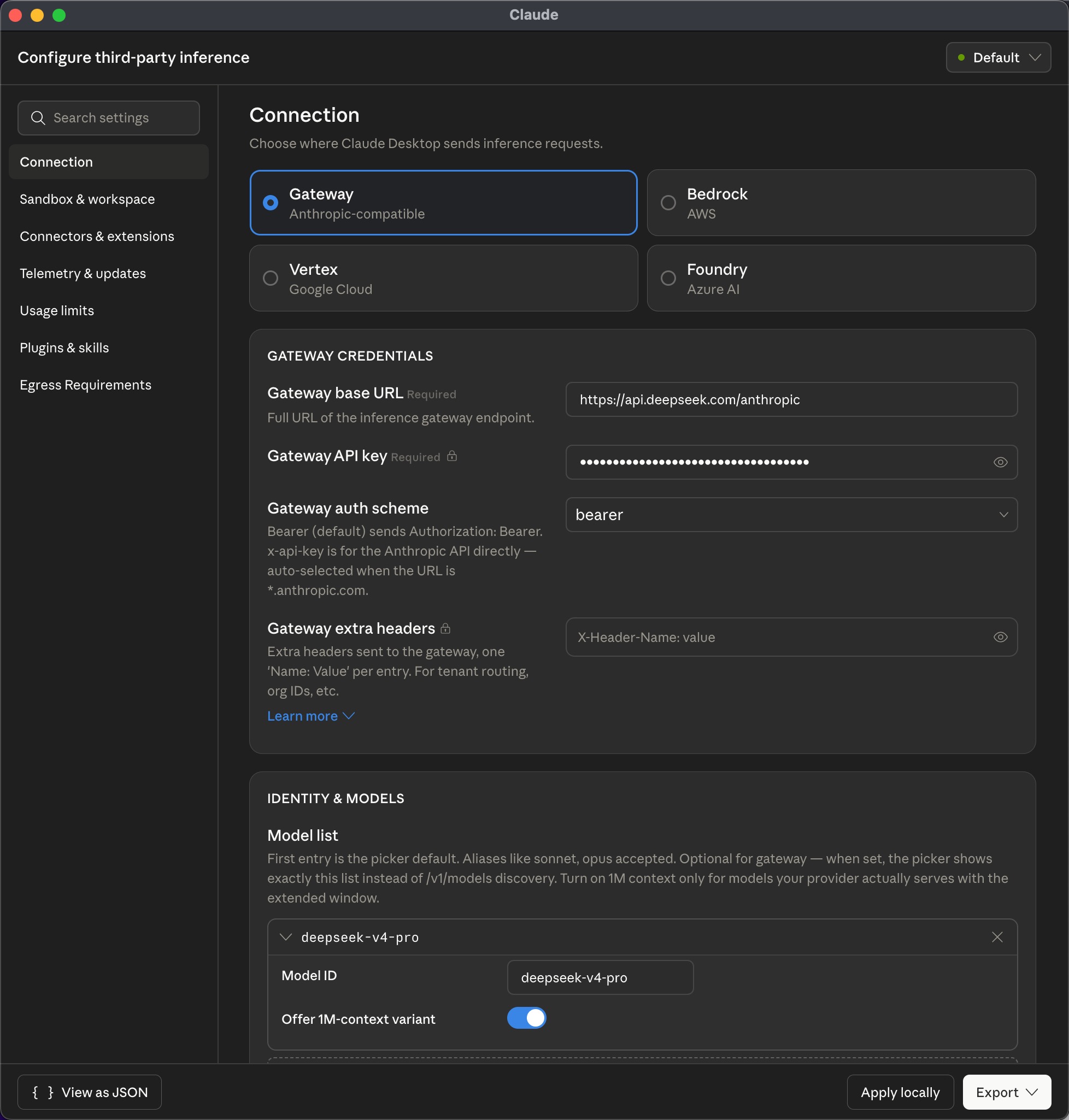
    <p>打开 <code class="language-plaintext highlighter-rouge">Developer</code> → <code class="language-plaintext highlighter-rouge">Configure Third-Party Inference...</code>，在默认的 <code class="language-plaintext highlighter-rouge">Connection</code> 中修改 <code class="language-plaintext highlighter-rouge">Gateway</code> 模式下的配置：</p>

    <div class="language-text highlighter-rouge"><div class="highlight"><pre class="highlight"><code>Gateway BaseURL:     https://api.deepseek.com/anthropic
Gateway API key:     刚生成的 DeepSeek API key
Gateway Auth Scheme: bearer
</code></pre></div>    </div>
  </li>
  <li>
    <p>继续往下拉，在 <code class="language-plaintext highlighter-rouge">Model list</code> 中点击 <code class="language-plaintext highlighter-rouge">Add</code>，<code class="language-plaintext highlighter-rouge">Model ID</code> 输入 <code class="language-plaintext highlighter-rouge">deepseek-v4-pro</code>，并开启 <code class="language-plaintext highlighter-rouge">Offer 1M-context variant</code> 选项。</p>

    <p><img src="/assets/images/2026-04-30-macos-claude-deepseek/config.jpg" alt="Claude 配置" /></p>
  </li>
  <li>
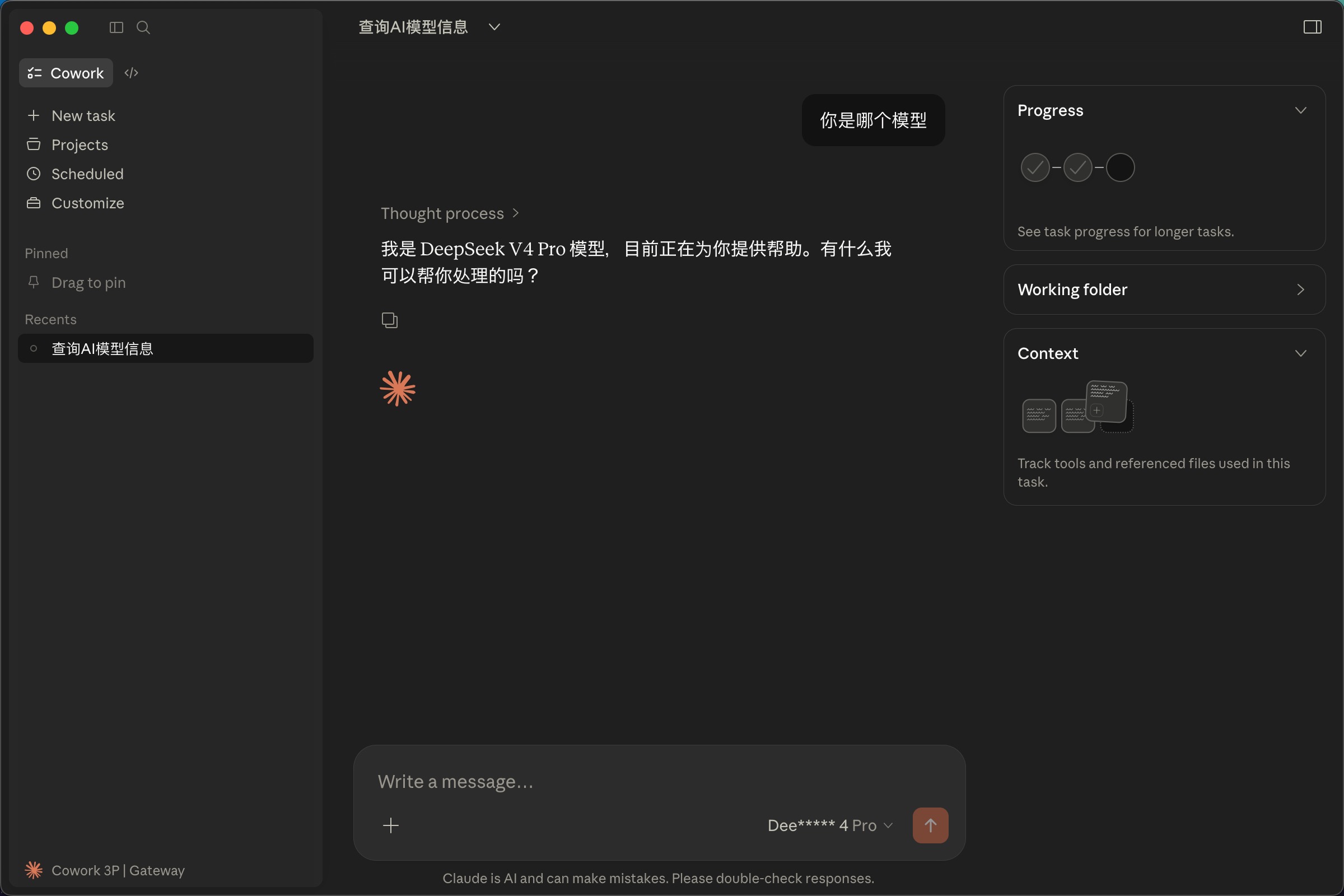
    <p>配置完成后，点击 <code class="language-plaintext highlighter-rouge">Apply locally</code>，再点击 <code class="language-plaintext highlighter-rouge">Relaunch Now</code> 等待应用重启完成，即可使用 DeepSeek V4 作为第三方模型进行对话。</p>

    <p><img src="/assets/images/2026-04-30-macos-claude-deepseek/result.jpg" alt="Claude 页面" /></p>
  </li>
</ol>]]></content><author><name>Onlydreams</name></author><category term="MacOS" /><category term="AI" /><category term="效率" /><category term="claude" /><category term="deepseek" /><category term="api" /><category term="third-party-inference" /><category term="upstreamkit" /><category term="cc-switch" /><summary type="html"><![CDATA[记录 MacOS 下将 Claude 桌面客户端接入 DeepSeek 作为第三方模型的步骤。]]></summary></entry><entry><title type="html">MacOS 开发环境加速配置全记录</title><link href="https://onlydreams.github.io/posts/macos-homebrew-acceleration/" rel="alternate" type="text/html" title="MacOS 开发环境加速配置全记录" /><published>2026-04-25T09:00:00+00:00</published><updated>2026-04-25T09:00:00+00:00</updated><id>https://onlydreams.github.io/posts/macos-homebrew-acceleration</id><content type="html" xml:base="https://onlydreams.github.io/posts/macos-homebrew-acceleration/"><![CDATA[<p>记录本次为加速 MacOS 开发环境所做的全部配置，涵盖 Homebrew、pip 以及终端代理。</p>

<hr />

<h2 id="一homebrew-加速">一、Homebrew 加速</h2>

<h3 id="1-清理第三方-tap">1. 清理第三方 Tap</h3>

<p>删除了两个从 GitHub 拉取的第三方 tap，避免 <code class="language-plaintext highlighter-rouge">brew update</code> 时访问外网：</p>

<div class="language-bash highlighter-rouge"><div class="highlight"><pre class="highlight"><code><span class="c"># 已删除的 tap</span>
brew untap antoniorodr/memo
brew untap qoderai/qoder
</code></pre></div></div>

<p>删除原因：这两个 tap 没有镜像，每次 <code class="language-plaintext highlighter-rouge">brew update</code> 都需要直接从 GitHub 拉取。</p>

<h3 id="2-配置国内镜像源">2. 配置国内镜像源</h3>

<h4 id="bottles--api中科大源">Bottles + API（中科大源）</h4>

<p><code class="language-plaintext highlighter-rouge">~/.zshrc</code> 中添加：</p>

<div class="language-bash highlighter-rouge"><div class="highlight"><pre class="highlight"><code><span class="nb">export </span><span class="nv">HOMEBREW_BOTTLE_DOMAIN</span><span class="o">=</span>https://mirrors.ustc.edu.cn/homebrew-bottles
<span class="nb">export </span><span class="nv">HOMEBREW_API_DOMAIN</span><span class="o">=</span>https://mirrors.ustc.edu.cn/homebrew-bottles/api
</code></pre></div></div>

<h4 id="brew-自身仓库腾讯源">Brew 自身仓库（腾讯源）</h4>

<p>Homebrew 核心代码仓库改用腾讯云镜像：</p>

<div class="language-bash highlighter-rouge"><div class="highlight"><pre class="highlight"><code>git <span class="nt">-C</span> <span class="s2">"</span><span class="si">$(</span>brew <span class="nt">--repo</span><span class="si">)</span><span class="s2">"</span> remote set-url origin https://mirrors.cloud.tencent.com/homebrew/brew.git
</code></pre></div></div>

<p>选择原因：实测腾讯源 <code class="language-plaintext highlighter-rouge">git ls-remote</code> 仅需 <strong>0.37 秒</strong>，而清华源需要 <strong>28.87 秒</strong>。</p>

<h3 id="3-关闭自动更新">3. 关闭自动更新</h3>

<p><code class="language-plaintext highlighter-rouge">~/.zshrc</code> 中添加：</p>

<div class="language-bash highlighter-rouge"><div class="highlight"><pre class="highlight"><code><span class="nb">export </span><span class="nv">HOMEBREW_NO_AUTO_UPDATE</span><span class="o">=</span>1
</code></pre></div></div>

<p>原因：<code class="language-plaintext highlighter-rouge">brew update</code> 即使在国内镜像下，由于 Homebrew 自身 git 仓库体积大，<code class="language-plaintext highlighter-rouge">git fetch</code> 仍然很慢。关闭后，<code class="language-plaintext highlighter-rouge">brew install</code> 不再自动触发更新。</p>

<hr />

<h2 id="二终端代理配置clash-verge">二、终端代理配置（Clash Verge）</h2>

<p><code class="language-plaintext highlighter-rouge">~/.zshrc</code> 中添加代理开关函数：</p>

<div class="language-bash highlighter-rouge"><div class="highlight"><pre class="highlight"><code><span class="c"># 替换 &lt;你的代理端口&gt; 为你实际使用的端口，如 7890 / 7897 / 8080 等</span>
<span class="nv">PROXY_HTTP</span><span class="o">=</span><span class="s2">"http://127.0.0.1:&lt;你的代理端口&gt;"</span>
<span class="nv">PROXY_SOCKS5</span><span class="o">=</span><span class="s2">"socks5://127.0.0.1:&lt;你的代理端口&gt;"</span>

proxy<span class="o">()</span> <span class="o">{</span>
  <span class="k">case</span> <span class="s2">"</span><span class="nv">$1</span><span class="s2">"</span> <span class="k">in
    </span>on<span class="p">)</span>
      <span class="nb">export </span><span class="nv">HTTP_PROXY</span><span class="o">=</span><span class="s2">"</span><span class="nv">$PROXY_HTTP</span><span class="s2">"</span>
      <span class="nb">export </span><span class="nv">HTTPS_PROXY</span><span class="o">=</span><span class="s2">"</span><span class="nv">$PROXY_HTTP</span><span class="s2">"</span>
      <span class="nb">export </span><span class="nv">ALL_PROXY</span><span class="o">=</span><span class="s2">"</span><span class="nv">$PROXY_SOCKS5</span><span class="s2">"</span>
      <span class="nb">export </span><span class="nv">http_proxy</span><span class="o">=</span><span class="s2">"</span><span class="nv">$PROXY_HTTP</span><span class="s2">"</span>
      <span class="nb">export </span><span class="nv">https_proxy</span><span class="o">=</span><span class="s2">"</span><span class="nv">$PROXY_HTTP</span><span class="s2">"</span>
      <span class="nb">export </span><span class="nv">all_proxy</span><span class="o">=</span><span class="s2">"</span><span class="nv">$PROXY_SOCKS5</span><span class="s2">"</span>
      git config <span class="nt">--global</span> http.proxy <span class="s2">"</span><span class="nv">$PROXY_HTTP</span><span class="s2">"</span>
      git config <span class="nt">--global</span> https.proxy <span class="s2">"</span><span class="nv">$PROXY_HTTP</span><span class="s2">"</span>
      <span class="nb">echo</span> <span class="s2">"Proxy ON  -&gt;  </span><span class="nv">$PROXY_HTTP</span><span class="s2">"</span>
      <span class="p">;;</span>
    off<span class="p">)</span>
      <span class="nb">unset </span>HTTP_PROXY HTTPS_PROXY ALL_PROXY
      <span class="nb">unset </span>http_proxy https_proxy all_proxy
      git config <span class="nt">--global</span> <span class="nt">--unset</span> http.proxy
      git config <span class="nt">--global</span> <span class="nt">--unset</span> https.proxy
      <span class="nb">echo</span> <span class="s2">"Proxy OFF"</span>
      <span class="p">;;</span>
    status|<span class="k">*</span><span class="p">)</span>
      <span class="k">if</span> <span class="o">[[</span> <span class="nt">-n</span> <span class="s2">"</span><span class="nv">$HTTP_PROXY</span><span class="s2">"</span> <span class="o">]]</span><span class="p">;</span> <span class="k">then
        </span><span class="nb">echo</span> <span class="s2">"Proxy: ON  (</span><span class="nv">$HTTP_PROXY</span><span class="s2">)"</span>
      <span class="k">else
        </span><span class="nb">echo</span> <span class="s2">"Proxy: OFF"</span>
      <span class="k">fi</span>
      <span class="p">;;</span>
  <span class="k">esac</span>
<span class="o">}</span>
</code></pre></div></div>

<p>用法：</p>

<div class="language-bash highlighter-rouge"><div class="highlight"><pre class="highlight"><code>proxy on     <span class="c"># 开启终端代理</span>
proxy off    <span class="c"># 关闭终端代理</span>
proxy status <span class="c"># 查看当前状态</span>
</code></pre></div></div>

<p>作用：让终端中的 <code class="language-plaintext highlighter-rouge">git</code>、<code class="language-plaintext highlighter-rouge">curl</code>、<code class="language-plaintext highlighter-rouge">brew</code> 等命令也能走 Clash Verge 代理，解决 GitHub 访问慢/超时的问题。</p>

<hr />

<h2 id="三pip-加速">三、pip 加速</h2>

<p>配置阿里云 PyPI 镜像：</p>

<div class="language-bash highlighter-rouge"><div class="highlight"><pre class="highlight"><code>pip3 config <span class="nb">set </span>global.index-url <span class="s2">"https://mirrors.aliyun.com/pypi/simple/"</span>
pip3 config <span class="nb">set </span>global.trusted-host <span class="s2">"mirrors.aliyun.com"</span>
</code></pre></div></div>

<p>配置文件位置：<code class="language-plaintext highlighter-rouge">~/.config/pip/pip.conf</code></p>

<hr />

<h2 id="四镜像源速度实测">四、镜像源速度实测</h2>

<h3 id="homebrew-仓库镜像对比">Homebrew 仓库镜像对比</h3>

<table>
  <thead>
    <tr>
      <th>镜像源</th>
      <th>git ls-remote 耗时</th>
    </tr>
  </thead>
  <tbody>
    <tr>
      <td>清华源</td>
      <td>28.87 秒</td>
    </tr>
    <tr>
      <td><strong>腾讯源</strong></td>
      <td><strong>0.37 秒</strong></td>
    </tr>
  </tbody>
</table>

<h3 id="pypi-镜像对比">PyPI 镜像对比</h3>

<table>
  <thead>
    <tr>
      <th>镜像源</th>
      <th>响应时间</th>
    </tr>
  </thead>
  <tbody>
    <tr>
      <td>官方 PyPI</td>
      <td>12.74 秒</td>
    </tr>
    <tr>
      <td>中科大</td>
      <td>0.14 秒</td>
    </tr>
    <tr>
      <td><strong>阿里云</strong></td>
      <td><strong>0.23 秒</strong></td>
    </tr>
    <tr>
      <td>腾讯云</td>
      <td>0.34 秒</td>
    </tr>
    <tr>
      <td>清华</td>
      <td>0.38 秒</td>
    </tr>
    <tr>
      <td>豆瓣</td>
      <td>0.40 秒</td>
    </tr>
  </tbody>
</table>

<hr />

<h2 id="五当前环境信息">五、当前环境信息</h2>

<ul>
  <li><strong>系统</strong>：MacOS (Intel)</li>
  <li><strong>Shell</strong>：zsh</li>
  <li><strong>Homebrew</strong>：较新版本</li>
  <li><strong>代理工具</strong>：本地代理客户端（规则模式）</li>
</ul>]]></content><author><name>Onlydreams</name></author><category term="MacOS" /><category term="Homebrew" /><category term="代理" /><category term="效率" /><category term="homebrew" /><category term="pip" /><category term="proxy" /><category term="mirror" /><category term="zsh" /><summary type="html"><![CDATA[记录本次为加速 MacOS 开发环境所做的全部配置，涵盖 Homebrew、pip 以及终端代理。]]></summary></entry></feed>